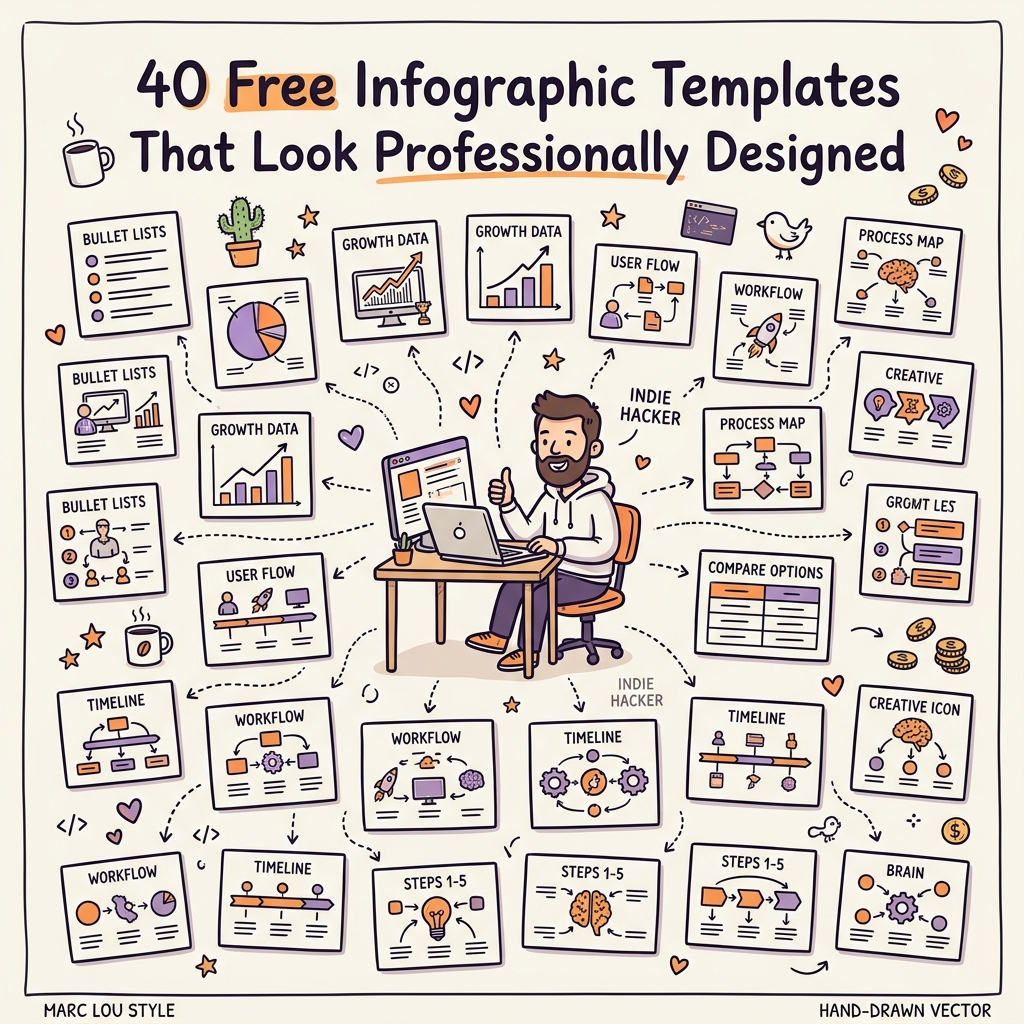
Free infographic templates have a reputation problem: most of them look free. Cramped layouts, clashing colors, and clip-art icons that immediately signal "made in five minutes." That reputation is undeserved for the templates worth using — the right free template gives you the same visual hierarchy, grid layout, and typography discipline as a paid design, minus the price tag and the blank-page panic. This roundup covers 40 templates across the formats you actually need, organized by use case, so you can find one that fits your data instead of forcing your data to fit a template.
Why Free Doesn't Have to Mean Generic
The gap between a free infographic template and a paid one used to be huge — thin color options, locked layouts, watermarks you couldn't remove without paying up. That gap has mostly closed. Since Canva expanded its free tier and added AI-assisted layout tools in 2024, the quality ceiling on free templates has climbed sharply, and platforms like Venngage and Piktochart followed with their own expanded free libraries.
What still separates a template that looks professionally designed from one that doesn't isn't the price — it's whether the grid layout, white space, and font pairing were handled with any discipline in the first place. A free infographic maker template with generous margins and two well-paired fonts will consistently outperform a "premium" template that's visually cluttered. The infographic template download you choose matters less than how much you respect the structure once you start editing it.
The Best Categories of Free Templates (And Where to Find Them)
Different infographic jobs call for different template structures. Here's how to match the format to the task:
- Statistical infographics — best for a single striking number or a handful of stats. Canva and Venngage both offer strong free options with built-in chart placeholders so you're not building bar charts from scratch.
- Process and step-by-step infographics — ideal for workflows, recipes, or onboarding guides. Look for templates with numbered nodes and connecting lines already built in, which saves the most editing time.
- Comparison infographics — side-by-side or versus layouts, useful for product comparisons or before/after content. Piktochart's free tier has several genuinely well-balanced two-column options.
- Timeline infographics — chronological storytelling, from company history to project milestones. Canva infographic templates in this category tend to have the most polish per free download.
- List-based infographics — "10 ways to..." or "5 signs of..." formats, which remain some of the most shared infographic types on social platforms.
Whichever category fits your data, resist the urge to cram every stat into one template. A free infographic template is not obligated to hold everything you know about a topic — pick the three or four data points that actually matter and let the layout breathe.
Editing Templates Without Breaking the Design
The fastest way to ruin a good free infographic template is to swap in your own colors, your own icon set, and your own font, all in the first five minutes. Each of those changes individually can work; all three at once usually collapses the visual hierarchy the original designer built.
A better editing order: start with color, since it's the fastest structural change and the one most likely to clash if done last. Then check your icon set against the template's existing icon style — mixing flat icons with line icons in the same design is one of the fastest ways to look unpolished. Save font changes for last, and change no more than two fonts total: one for headers, one for body text.
In Canva specifically, use the "Styles" panel to swap an entire color and font combination at once rather than manually recoloring individual elements — it preserves the contrast ratios the template was built with. In Figma-based templates, work through the color styles panel the same way rather than overriding hex values directly, since direct overrides break if you ever want to swap the palette again.
Common Mistakes That Make a Free Template Look Cheap
A few habits separate a professional-looking result from an obviously free one, regardless of which infographic template download you start from:
- Using more than three fonts in a single design — pick two, maximum.
- Stretching a template's proportions to fit more text, which distorts icons and breaks alignment.
- Ignoring the built-in grid and free-placing elements "by eye," which almost always results in inconsistent spacing.
- Using default stock icons that appear in thousands of other templates instead of swapping in a more specific icon set.
Fix these four things and even a genuinely free template will read as custom-built. See our free icon sets roundup for icon packs that pair well with most of the templates above without looking like the default option everyone else picked.
What to Do Once You've Picked a Template
Once you've settled on a layout, resist customizing everything at once. Lock in your color palette first, test it against your actual data, and only then move to typography and icons. Browse the Examples Gallery for finished infographics built from templates like these — seeing a template in its "after" state makes editing decisions much easier than staring at a blank layout.
Frequently Asked Questions
Where can I find free infographic templates?
Canva, Venngage, and Piktochart all offer strong free infographic maker tiers with hundreds of templates across statistical, process, comparison, and timeline formats. Canva's free tier in particular expanded significantly after its 2024 AI tooling update.
Are free infographic templates good enough for professional use?
Yes, provided you respect the original grid layout and limit yourself to two fonts and a tested color palette. The quality gap between free and paid templates has narrowed considerably, and most viewers can't tell the difference when the structure is left intact.
Can I use Canva infographic templates commercially?
Most Canva free templates are cleared for commercial use, but always check the specific license on the template's page before publishing, since a small number of elements within free designs are marked Canva Pro-only.
How do I edit a template without ruining the design?
Change color first, check your icon set against the template's existing style second, and limit font changes to two typefaces total, edited last. Making all three changes at once is the fastest way to break a template's visual hierarchy.
What's the difference between a free and paid infographic template?
Paid templates typically offer more layout variety, premium icon sets, and brand kit integration, but the structural quality — grid, spacing, typography — is often comparable to well-designed free options, especially on Canva and Venngage.